
You can import from and export to Google Drive. Set up the destination folder once in your workspace settings, then connect Drive folders to Playbook Assets for content sync, or export campaign output straight to Drive.
Set up the export folder
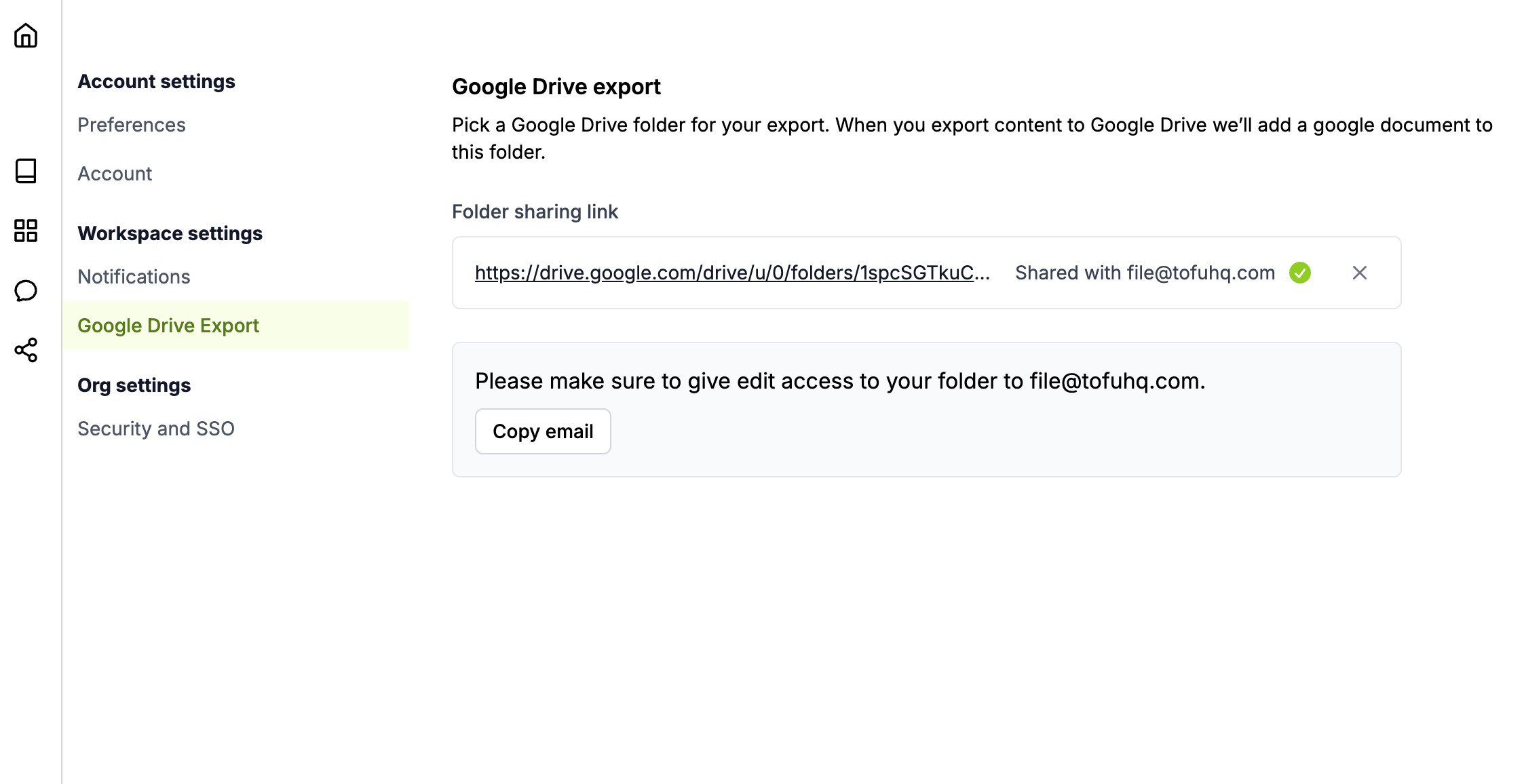
- Go to Settings → Workspace settings → Google Drive Export.
- Paste the sharing link for the Google Drive folder you want Tofu to export into.
- Share edit access on that folder with
file@tofuhq.com(use the Copy email button to grab the address). - Once the folder is recognized, you’ll see a green check and “Shared with file@tofuhq.com” next to the link.
Pull content from a Drive folder
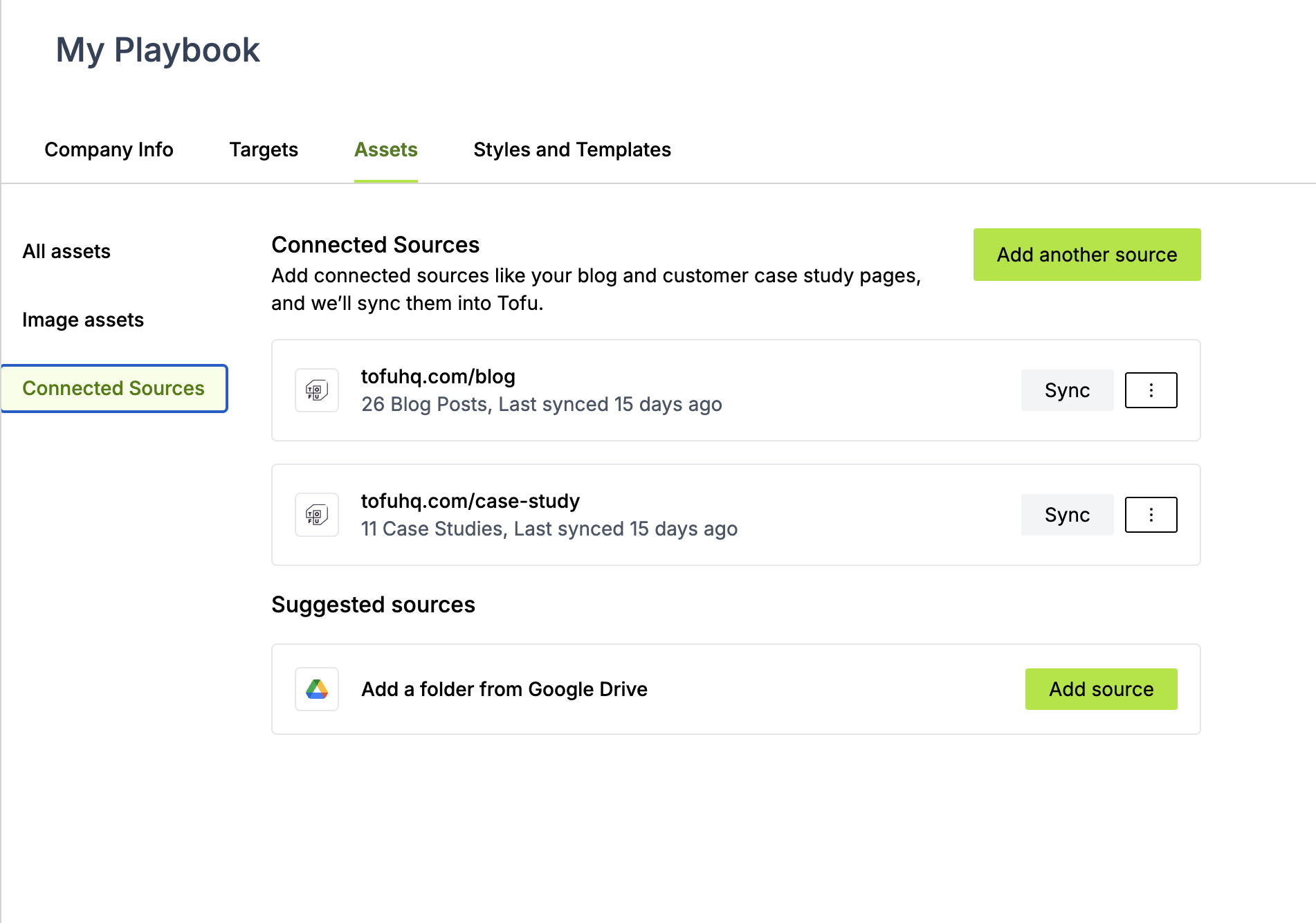
Use Connected Sources to sync content from a Drive folder into your Playbook Assets. This is a fast way to bring in content from an existing content hub or to plug into a Zapier flow that drops files into Drive automatically.
- Go to Playbook → Assets → Connected Sources.
- Under Suggested sources, click Add source next to “Add a folder from Google Drive.”
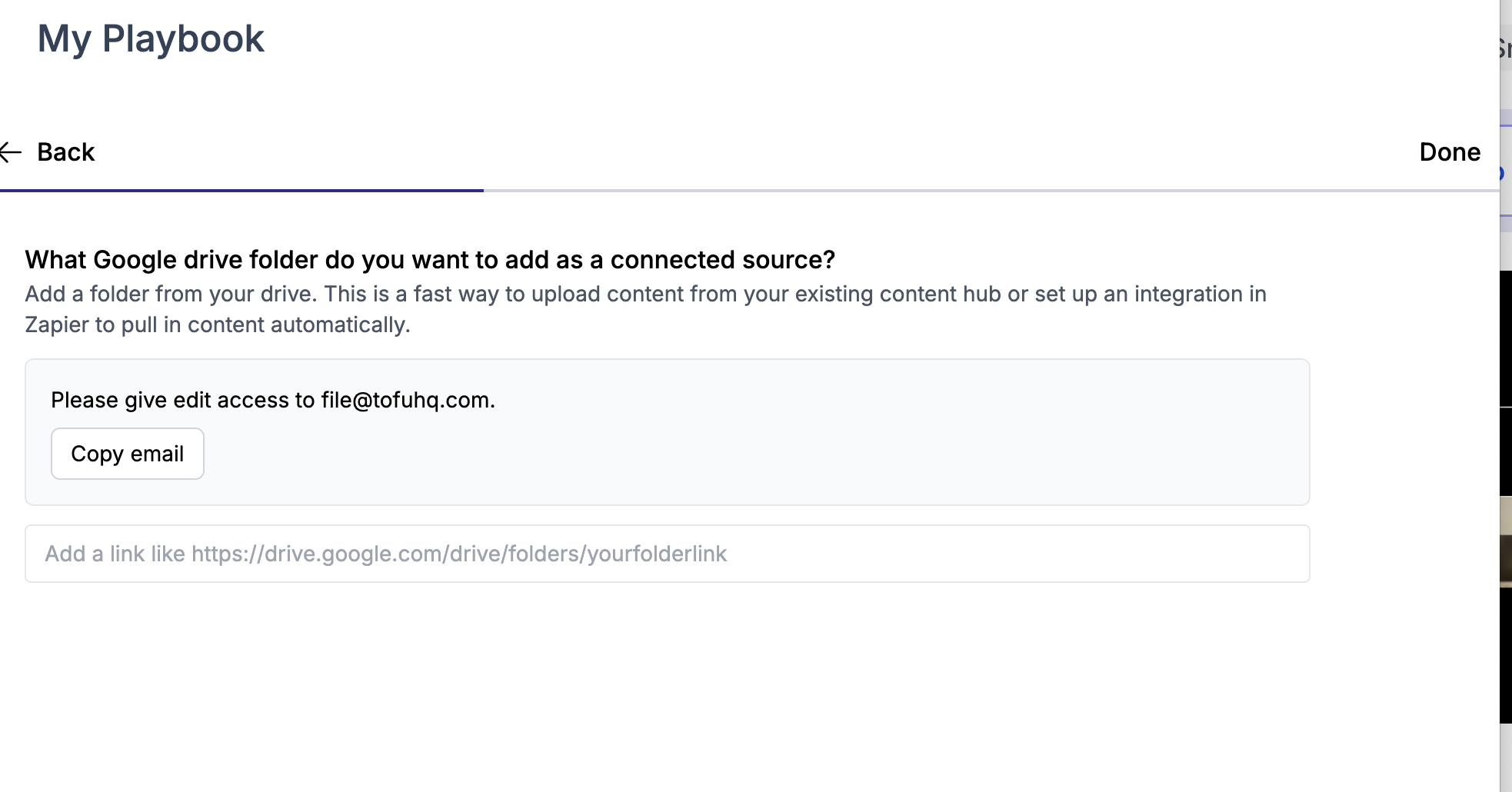
- Paste the Drive folder link and make sure that folder is shared with edit access for
file@tofuhq.com. - Click Done. Tofu will sync the folder’s contents into your Assets.
Export campaign content to Drive
Once your export folder is set up, you can send campaign content directly to Drive from a campaign. Watch the walkthrough below: