Need help deciding what option to choose for exporting your personalized emails? Read through the options below to better understand which option will work best for you!
Exporting Options
You can export your emails to HubSpot, Marketo, or Salesforce if the target list used was imported from the same platform.
You can also export your emails to a CSV file by selecting the download the email content in a CSV option.
Dynamic vs Static Email
A dynamic email will only export one email to HubSpot, Marketo, or Salesforce. This email will dynamically change the content of the email, based on the contact the email is being sent to.
A static email will export an individual email for each target selected. For example, if you personalized an email for 200 targets, 200 emails will be exported to HubSpot, Marketo, or Salesforce.
Advanced Settings (HubSpot Only)
Email Type
- Automated: Use this option if you plan to send the emails through a HubSpot workflow.
- Regular: Use this option if you plan to send the emails via the standard flow.
Email Footer
By default, Tofu will export a footer to HubSpot. This footer has been created by Tofu to make the email feel more personalized vs automated. If you do not like this footer, you can replace this in HubSpot with one of your own footers. Here is an example of the footer:

If you prefer to not export the HubSpot footer created by Tofu, please deselect the Email Footer option. Remember to add your own footer to the email, once the email has been exported to HubSpot.
Default and fallback values for tokens
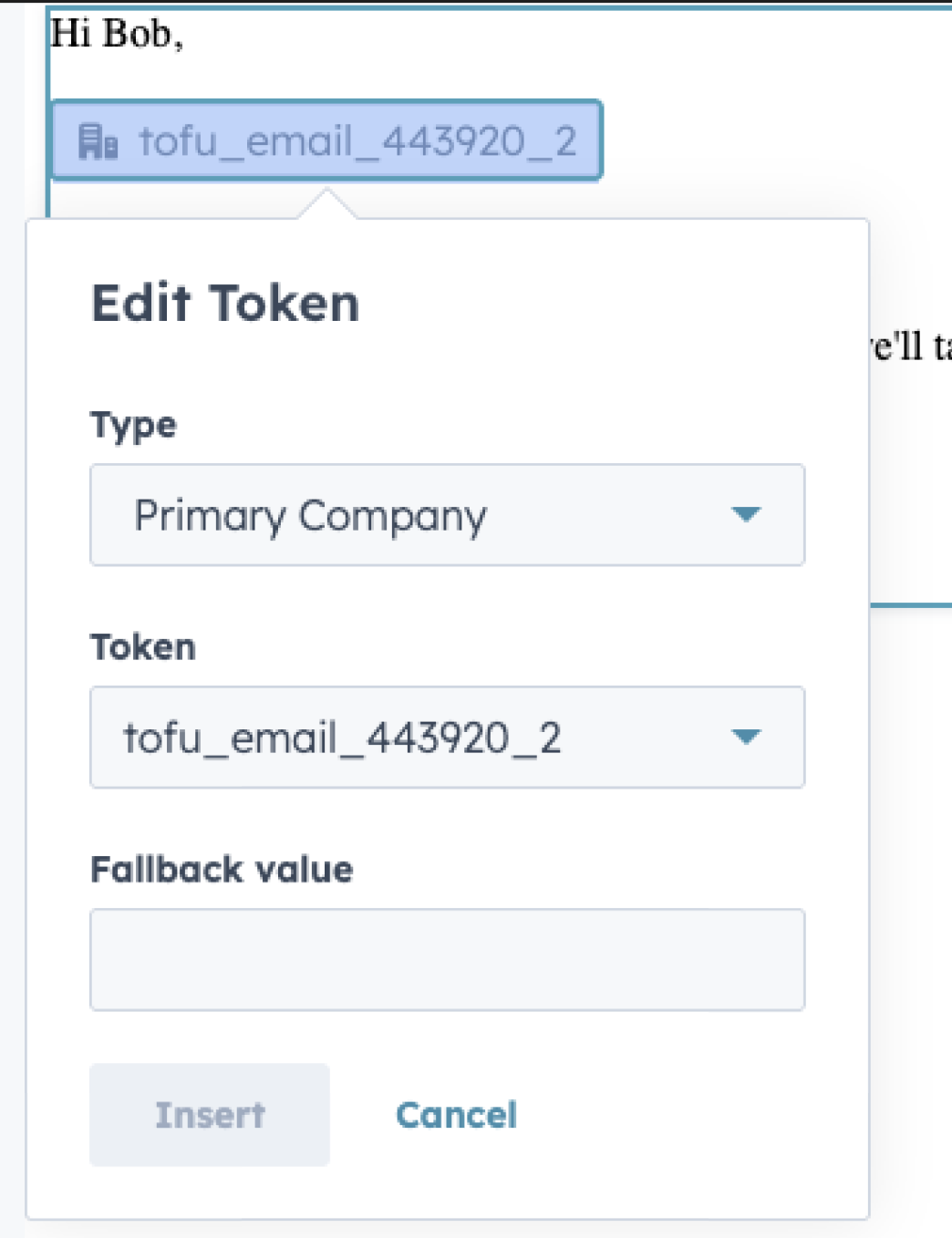
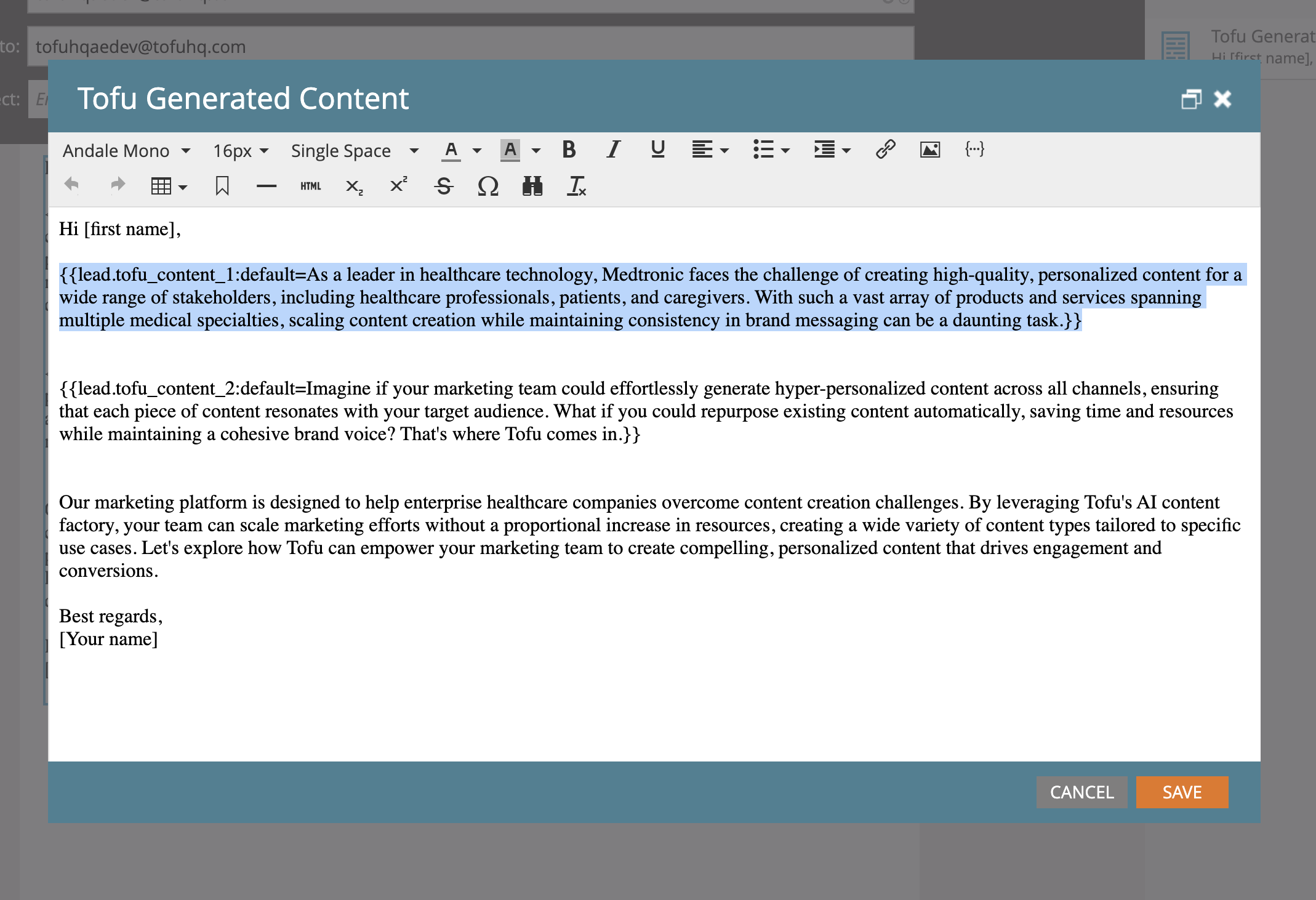
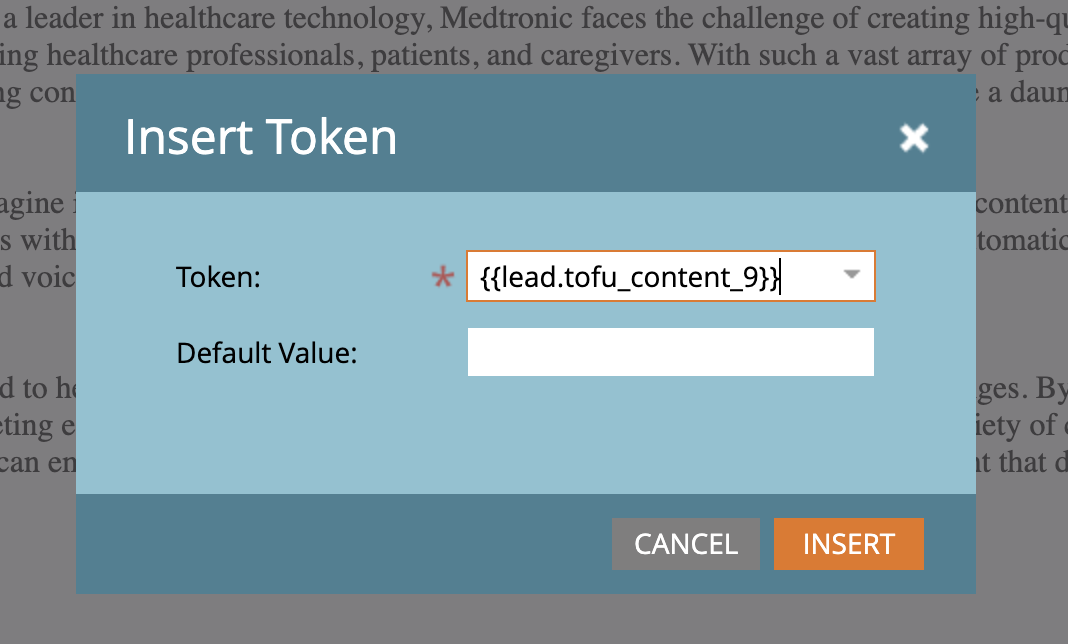
In your platform, open up the exported Tofu email and set a default value or fallback value for each token. This ensures that there is a generic message if the target doesn’t have personalized content or wasn’t part of your original Tofu campaign.
HubSpot
Click a Tofu token in the email body to open the Edit Token dialog, then enter a Fallback value and click Insert.
External reference: Create default values for personalization tokens (HubSpot Knowledge Base).
Marketo
Open the Tofu Generated Content block in the email editor, then use the Insert Token dialog to set a Default Value for each token.
External reference: Tokens overview (Adobe Experience League).
Salesforce
For Salesforce, you will set the default values in whatever email platform you’ve synced your Salesforce content to.
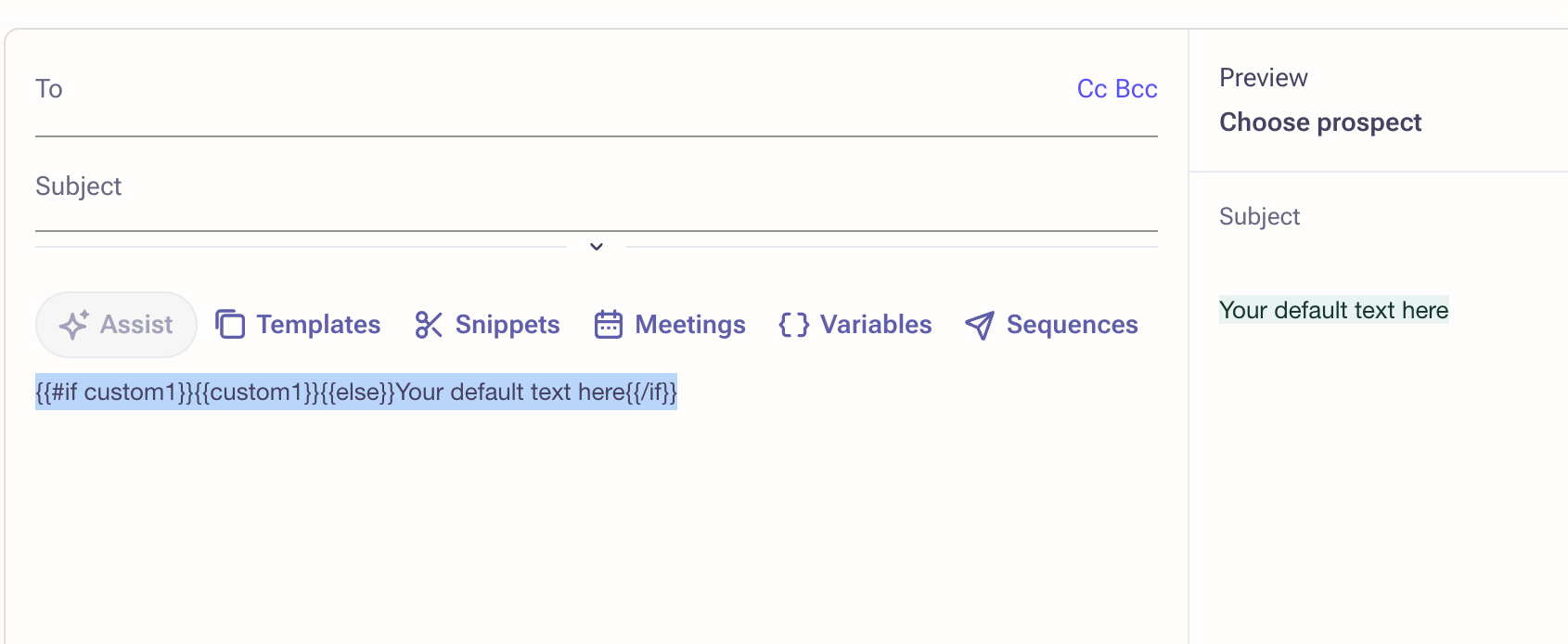
For Outreach:
{{#if custom1}}{{custom1}}{{else}}Your default text here{{/if}}